Self-Hosting Aptabase on a Mac Mini - A Troubleshooting Guide
I recently went looking for an analytics tool for an app I’m developing. There are plenty of options out there, but most are either too heavyweight or raise privacy concerns. After some research, Aptabase caught my eye — it’s privacy-first, uses no unique user identifiers, fully complies with GDPR/CCPA, comes with a clean and intuitive dashboard, and offers over 10 SDKs covering most major frameworks. Best of all, it supports self-hosting, so your data stays entirely under your control.
The official self-hosting repository makes it look simple — just clone, tweak a few configs, run docker compose up -d, and you’re done. But the actual deployment process had quite a few gotchas, and many others in the Issues have run into similar problems. Here’s what I learned, hoping it saves you some trouble.
Gotcha #1: No Emails by Default — Activation Link Hidden in Logs
Aptabase doesn’t configure SMTP out of the box. After registering an account, you won’t receive any email. However, it prints the activation link to the container logs, so you need to check them manually:
1 | docker logs -f aptabase_app |
Look for a link like this in the output, then open it in your browser to activate your account:
1 | https://your-domain/api/_auth/continue?token=eyJhbGciOiJIUzI1NiIs... |
This is just a temporary workaround — we’ll configure SMTP later for proper email delivery.
Gotcha #2: HTTPS Is Required — Otherwise Activation Loops Forever
After clicking the activation link, the page kept redirecting back to the login page in an endless loop. After debugging, I found that Aptabase requires BASE_URL to use HTTPS — otherwise cookies and redirects in the auth flow break.
My setup runs on a Mac Mini at home with no public IP, and I didn’t want to deal with certificates manually. The solution: Cloudflare Tunnel with a custom domain.
Setting Up Cloudflare Tunnel
- Log in to the Cloudflare Dashboard, go to Zero Trust → Networks → Tunnels
- Click Create a tunnel, choose the Cloudflared type, and give it a name (e.g.,
mac-mini) - Follow the instructions to install and run
cloudflaredon your Mac Mini. On macOS, use Homebrew:
1 | brew install cloudflared |
Then connect the tunnel using the command shown on the page (which includes a token):
1 | cloudflared service install <your-token> |
- On the tunnel’s Public Hostname page, add a record:
- Subdomain:
stats(or whatever you prefer) - Domain: select a domain hosted on Cloudflare, e.g.,
pastepaw.com - Service:
http://localhost:3200(this port matches the Nginx mapping in docker-compose)
- Subdomain:
Once configured, Cloudflare handles HTTPS certificates automatically. External traffic to https://stats.pastepaw.com is securely forwarded through the tunnel to your Mac Mini.
Gotcha #3: Can’t Get Real User IPs
After deployment, I noticed the dashboard showed the same IP for every user — Cloudflare’s IP, not the actual user’s.
This is a classic Cloudflare Tunnel issue. After traffic passes through Cloudflare’s proxy, the source IP becomes Cloudflare’s server IP. The real user IP is placed in the CF-Connecting-IP HTTP header, but Aptabase (built on ASP.NET Core) doesn’t read this header by default.
The fix is to add an Nginx reverse proxy in front of Aptabase that converts CF-Connecting-IP into the standard X-Forwarded-For header, then point Cloudflare Tunnel at Nginx instead of directly at Aptabase.
Here’s the nginx.conf:
1 | events { |
With this in place, Aptabase can correctly identify users’ real IPs.
Gotcha #4: Configuring SMTP for Email Delivery
Digging through container logs for activation links isn’t sustainable. Aptabase supports SMTP configuration via environment variables. I chose Resend as the email service — it’s free to sign up and offers 3,000 emails per month, more than enough for a personal project.
Setting Up a Domain in Resend
- Sign up for a Resend account
- Go to the Domains page and click Add Domain
- Enter the domain you want to send emails from (e.g.,
mail.pastepaw.com— it doesn’t need to match the Aptabase domain) - Resend will provide several DNS records to add, typically:
- An MX record
- An SPF (TXT) record
- Several DKIM (TXT) records
- Add these records in your DNS management panel (e.g., Cloudflare)
- Go back to Resend, click Verify, and wait for verification to complete (usually within a few minutes)
Generating an API Key
- In Resend’s left menu, go to the API Keys page
- Click Create API Key
- Name it (e.g.,
aptabase), set permission to Sending access, and optionally restrict it to the domain you just configured - Copy the generated key (starts with
re_) — this is your SMTP password
Configuring Environment Variables
Add these environment variables to the Aptabase service in your docker-compose.yml:
1 | SMTP_HOST: smtp.resend.com |
Note: Use port 587 (STARTTLS), not 465 (Implicit TLS). In my testing, port 465 failed to send emails in a Docker environment, while 587 worked immediately. This is another easy pitfall.
Complete Docker Compose Configuration
Here’s the final, working docker-compose.yml:
1 | services: |
Create a .env file for the database password:
1 | echo "PASSWORD=your_strong_database_password" > .env |
Reminder: Make sure to replace
AUTH_SECRETwith your own random string — you can generate one at RandomKeygen. Don’t use the example value from the official docs.
Starting the Services
1 | docker compose up -d |
Once all containers are up, visit https://stats.pastepaw.com, register an account, and this time you should receive the activation email properly.
Architecture Overview
Here’s the overall architecture with all components deployed:
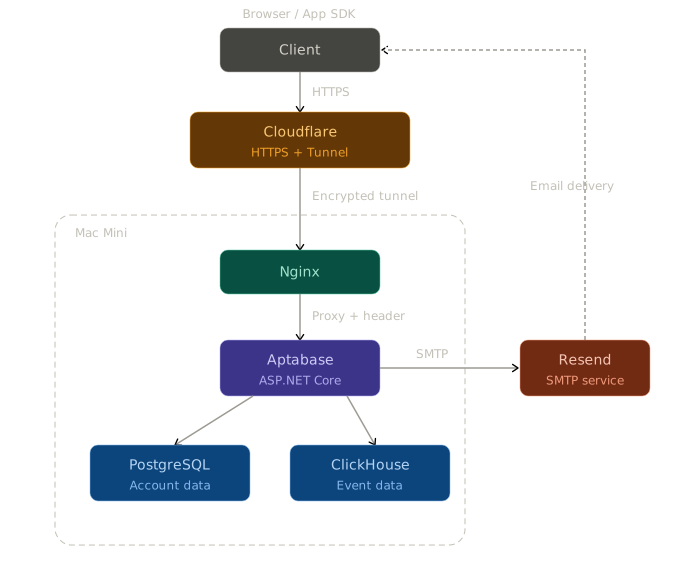
Component responsibilities:
- Cloudflare: Manages HTTPS certificates and CDN acceleration, securely forwards external traffic to the Mac Mini at home via Tunnel
- Nginx: Reverse proxy whose core job is converting Cloudflare’s
CF-Connecting-IPheader intoX-Forwarded-Forso Aptabase can identify real user IPs - Aptabase: The core application service — processes events reported by SDKs, manages user accounts, and provides the dashboard
- PostgreSQL: Stores user accounts, app configurations, API keys, and other relational data
- ClickHouse: High-performance OLAP engine that stores all reported event data and powers the dashboard’s real-time analytics
- Resend: External SMTP email service for sending account activation emails, etc.
Event Data Flow
When an SDK in your app reports an event, the data follows this path:
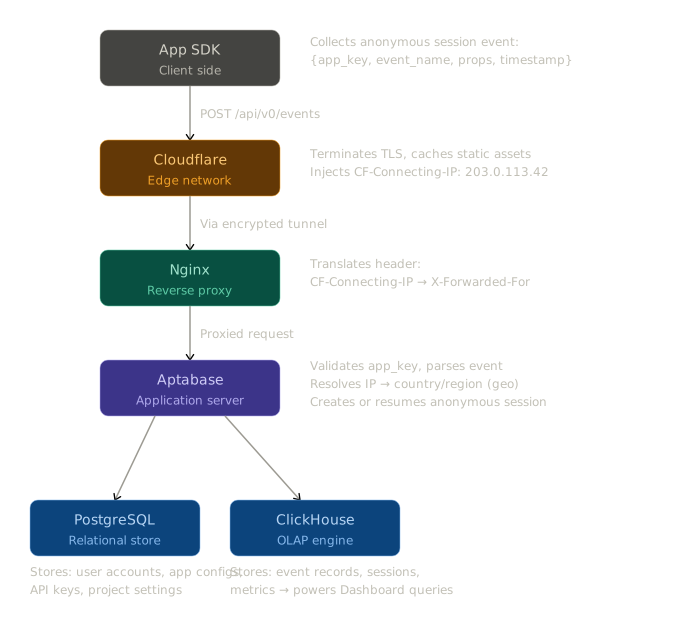
In short: every event sent by the SDK passes through Cloudflare for TLS termination and IP tagging, Nginx for header conversion, and Aptabase for validation and geo-resolution, before being written into ClickHouse in a structured format. All the charts and metrics you see on the dashboard are queried from ClickHouse in real time.
Conclusion
Aptabase itself is an excellent lightweight analytics tool, but the self-hosting documentation is fairly minimal, and there are several things you need to figure out on your own during deployment. Here’s a summary of the key gotchas:
- No emails by default — activation links are in the container logs, check with
docker logs -f - HTTPS is required — otherwise the auth flow loops endlessly; Cloudflare Tunnel is the recommended solution
- Real IP resolution — after Cloudflare Tunnel proxying, you need an Nginx layer to convert headers
- SMTP port — use 587 (STARTTLS), not 465; the latter may not work in Docker environments
- Security configuration — always replace the default
AUTH_SECRETand keep your API keys and database passwords safe
I hope this article helps anyone else looking to self-host Aptabase and saves you from some of these pitfalls.